
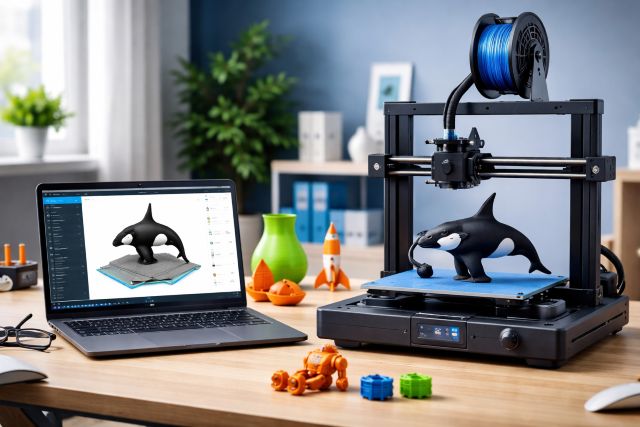

If you’ve spent any time around hobbyist or prosumer 3D printing lately, you’ve probably heard the same recommendation pop up again and again: Orca Slicer. In the first few minutes of using it, you can feel why — clean interface, fast workflow, and a surprisingly “complete” set of tuning tools that usually require extra plugins, manual test models, or a lot of guesswork.
But Orca Slicer isn’t just “another slicer.” It’s part of a modern slicer family tree that blends proven foundations with community-driven improvements. Orca Slicer is based on Bambu Studio, which itself is based on PrusaSlicer (and earlier Slic3r roots). That lineage matters because it explains why Orca can feel both familiar and more advanced at the same time.
What’s really pushing Orca Slicer into “go-to” territory is the way it solves the two biggest pain points in FDM printing: dialing in quality reliably and doing it without turning every print into a science project.
What Is Orca Slicer, and Where Did It Come From?
Orca Slicer is an open-source G-code generator (slicer) used to convert 3D models into printer instructions. It’s licensed under AGPLv3 and built on top of a well-established stack: Bambu Studio → PrusaSlicer.
That origin story is more than trivia — it’s why Orca Slicer inherits:
The project-based workflow and UI polish people associate with Bambu Studio
The mature slicing engine, features, and printing concepts refined in PrusaSlicer
And then Orca goes further by integrating and popularizing power-user improvements (including features inspired by SuperSlicer, per the project’s own description).
A strong signal of adoption is visible right in the open-source footprint: the OrcaSlicer repo has accumulated tens of thousands of GitHub stars and a large fork count, indicating broad community interest and experimentation.
Why Orca Slicer Is Winning People Over
There are lots of slicers that can produce good prints. Orca’s momentum comes from the fact that it helps you get good prints faster, especially if you’re running modern firmware (like Klipper) or pushing higher speeds.
1) Built-in calibration that feels like a “quality shortcut”
Most slicers let you change settings. Orca Slicer pushes you to measure and calibrate the settings that actually affect dimensional accuracy, surface finish, and corners.
Orca’s calibration toolkit includes guided tests for things like:
Temperature tuning
Flow rate calibration
Pressure advance calibration (with multiple approaches)
Retraction tests
Other advanced tuning steps
…and the official docs present a recommended order so you’re not randomly tweaking settings that depend on each other.
Real-world example:
If your prints have blobby corners or inconsistent extrusion at speed changes, it’s common to chase retraction or cooling. Orca’s pressure advance calibration focuses you on a more likely root cause: extrusion pressure lag during acceleration/deceleration, which the Orca docs specifically call out as a quality limiter.
Actionable tip: After running a calibration sequence, start a fresh project to exit calibration mode (this is an easy “why are my settings weird?” gotcha mentioned in the calibration guide).
2) “Best of both worlds” interface: beginner-friendly, expert-capable
A common slicer problem is that you either get:
A simplified UI that hides important controls, or
A professional UI that overwhelms new users
Orca’s approach is closer to: “easy workflow up front, deep control when you want it.” That’s exactly the balance many people praise about the Bambu Studio-style workflow, which was designed for smooth printing experiences and project-based management.
So if you’re coming from Cura, PrusaSlicer, or a printer-branded slicer, Orca often feels like an upgrade in day-to-day usability without taking away the knobs you actually need.
3) Strong printer ecosystem support (especially beyond brand “walled gardens”)
One reason Orca Slicer keeps getting recommended is that it’s perceived as “more open” than slicers that primarily serve a single hardware ecosystem.
Even in the broader slicer landscape, the conversation around open compatibility is getting louder. For example, Prusa has emphasized cross-brand accessibility in newer tooling, and industry coverage has highlighted how brand-restricted workflows can limit users.
Orca sits in the middle: it inherits modern workflow ideas from a brand-driven slicer lineage, while being community-led and broadly usable across setups.
Orca Slicer vs PrusaSlicer vs Bambu Studio
People often ask, “Is Orca just a reskin?” Not really. It’s better described as a community-accelerated branch of a modern slicer line.
Here’s a practical comparison for everyday users:
| What you care about | Orca Slicer | PrusaSlicer | Bambu Studio |
|---|---|---|---|
| Modern project workflow | Strong (Bambu-style) | Solid | Strong |
| Deep slicing maturity | High (inherits stack) | Very high | High |
| Calibration guidance built-in | Notable focus | More manual | Varies by workflow |
| Variable/Adaptive layer height | Supported in PrusaSlicer lineage; powerful when used well | Strong, documented | Lineage-based |
| Cross-printer flexibility | Strong community emphasis | Strong | More ecosystem-tied (common perception) |
One underappreciated advantage of this family tree is how many features are battle-tested. For instance, variable layer height is a proven way to reduce print time while keeping detail where it matters, and Prusa’s documentation explicitly notes it can shorten print times with minimal quality tradeoff when used correctly.
That means Orca users aren’t betting on a “new engine.” They’re gaining a modern workflow plus a calibration-first mindset on top of a mature slicing base.
The Surprising “Pro” Use Cases Where Orca Slicer Shines
Speed printing without quality collapse
As printers get faster, the limiting factor shifts from motion to extrusion behavior and tuning. Orca’s focus on pressure advance and flow calibration directly targets the defects that show up when you push speed.
Scenario:
You upgrade to Klipper, crank acceleration, and suddenly corners look messy and thin walls vary. Orca’s calibration workflow gives you a systematic path instead of endless trial-and-error.
Multi-material / multi-color workflow familiarity
Because Orca comes from the same general workflow philosophy as Bambu Studio, users who like project-based printing and multi-color style controls often find Orca intuitive.
Teaching and maker spaces
For classrooms and maker spaces, the best slicer is the one that reduces failure rate without turning instructors into full-time troubleshooters. Orca’s guided calibration documentation is unusually “teach-able” compared to scattered calibration tutorials.
How to Get the Best Results in Orca Slicer (Quick Start)
Here’s a simple, reliable approach that matches how the calibration docs are structured:
Start with temperature tuning first (nozzle/bed).
Calibrate flow rate so your extrusion matches reality.
Calibrate pressure advance to clean up corners and speed transitions.
Only then chase retraction and fine cosmetic tweaks.
Practical advice: Don’t change ten settings at once. Orca’s workflow is most powerful when you treat it like a controlled experiment: calibrate, save as a profile, then iterate.
FAQ: Orca Slicer Questions People Ask Most
What is Orca Slicer used for?
Orca Slicer is used to turn 3D models into G-code (printer instructions) and to tune print settings using guided calibration tools, improving reliability and quality.
Is Orca Slicer free and open source?
Yes. OrcaSlicer is distributed as open-source software under AGPLv3, and its source code is publicly available.
Is Orca Slicer better than PrusaSlicer?
It depends on your priorities. PrusaSlicer is extremely mature and well-documented (for example, its variable layer height tool is clearly explained and widely used).
Orca Slicer often wins for users who want a modern project workflow plus a calibration-first experience that reduces tuning guesswork.
Does Orca Slicer help with fast printing?
Yes—especially through pressure advance calibration, which targets print artifacts caused by speed changes and extrusion lag (a common issue when accelerating prints).
Where can I find Orca Slicer calibration steps?
Orca maintains a structured calibration guide that covers temperature, flow rate, pressure advance, retraction, and more, with a recommended order of operations.
Conclusion: Why Orca Slicer Keeps Becoming the Default Recommendation
The reason Orca Slicer is becoming the go-to choice is simple: it meets people where they are. Newer users get a clean workflow that makes slicing less intimidating. Advanced users get calibration tools and print-quality controls that directly address real defects — especially as printers get faster and expectations get higher.
And because Orca is built on a proven lineage (Bambu Studio and PrusaSlicer) while staying community-driven, it feels less like a risky “new slicer” and more like the next step in what slicer software is already becoming.
If you’re writing about practical 3D printing improvements — fewer failures, cleaner corners, better dimensional accuracy, faster iteration — Orca Slicer has earned its spot in the conversation, and it’s increasingly earning a permanent place in people’s toolkits.















Leave a comment