
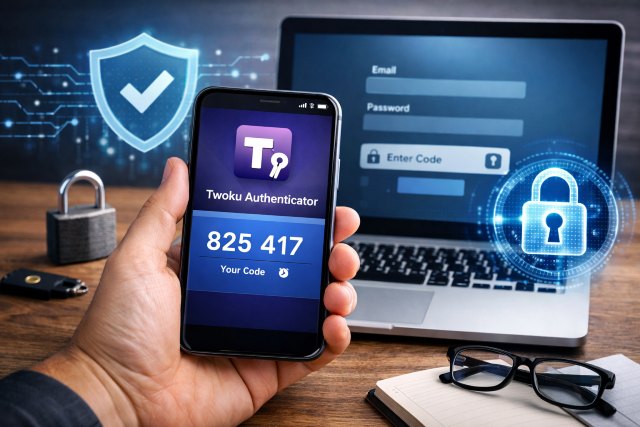

Online security has become one of the most critical concerns in the digital age. Every day, millions of users face threats such as phishing, password leaks, identity theft, and account takeovers. Even strong passwords alone are no longer enough to protect sensitive accounts. This is where Twoku Authenticator becomes an essential tool for safeguarding your digital identity.
Twoku Authenticator is a two-factor authentication (2FA) app designed to add an extra layer of protection to your online accounts. By generating time-based security codes, the app ensures that even if someone steals your password, they still cannot access your account without the authentication code generated on your device.
In this guide, you’ll learn how Twoku Authenticator works, how to set it up, and how to use it effectively for stronger online security. We’ll also explore best practices, real-world examples, and answers to common questions so you can maximize your account protection.
What Is Twoku Authenticator?
Twoku Authenticator is a mobile authentication app that generates secure, temporary verification codes used for two-factor authentication (2FA).
Two-factor authentication requires users to provide two types of verification:
-
Something you know (your password)
-
Something you have (a code generated by Twoku Authenticator)
These codes change every 30 seconds, making them extremely difficult for attackers to predict or intercept.
Many popular platforms now support authenticator apps, including:
-
Google
-
Microsoft
-
Facebook
-
Instagram
-
GitHub
-
Dropbox
-
Banking and financial apps
Using Twoku Authenticator significantly reduces the risk of unauthorized account access.
According to a report by Microsoft, multi-factor authentication can block more than 99.9% of automated cyberattacks.
Why Two-Factor Authentication Matters
Passwords alone are vulnerable for several reasons:
-
People reuse passwords across multiple sites
-
Data breaches expose millions of credentials
-
Phishing attacks trick users into revealing passwords
In fact, IBM’s Cost of a Data Breach report found that credential theft is one of the leading causes of security incidents worldwide.
Two-factor authentication tools like Twoku Authenticator dramatically reduce these risks by requiring an additional verification step.
Key Benefits of Using Twoku Authenticator
Stronger account protection
Protection against phishing attacks
Secure login verification
Offline authentication codes
Quick and simple setup
Even if hackers obtain your password, they still need the code generated on your device to log in.
How Twoku Authenticator Works
Twoku Authenticator uses a security standard called Time-Based One-Time Password (TOTP).
When you enable 2FA on a service, the website shares a secret key with your authenticator app using a QR code. Twoku Authenticator stores this key securely on your phone.
The app then generates a new six-digit verification code every 30 seconds based on:
-
The secret key
-
The current time
When you log into your account, you enter both:
-
Your password
-
The code from Twoku Authenticator
If both are correct, access is granted.
Because the code constantly changes, it becomes extremely difficult for attackers to exploit.
How to Set Up Twoku Authenticator
Setting up Twoku Authenticator only takes a few minutes and significantly improves your online security.
Step 1: Download Twoku Authenticator
Install the app from your device’s app store. It is typically available for both Android and iOS devices.
Once installed, open the app to begin setup.
Step 2: Enable Two-Factor Authentication on Your Account
Log into the account you want to protect.
Navigate to the security or login settings section and look for:
Two-Factor Authentication
Two-Step Verification
Authenticator App
Select the option to use an authenticator app.
Step 3: Scan the QR Code
The website will display a QR code.
Open Twoku Authenticator, choose “Add Account,” and scan the QR code using your phone’s camera.
This connects the app with your account.
Step 4: Enter the Verification Code
After scanning the QR code, Twoku Authenticator will generate a six-digit code.
Enter this code into the website to confirm setup.
Once verified, two-factor authentication will be activated.
How to Use Twoku Authenticator for Daily Logins
After setup, logging into your accounts becomes simple.
-
Enter your username and password as usual.
-
The website will request a verification code.
-
Open Twoku Authenticator on your phone.
-
Copy the six-digit code for the account.
-
Enter the code to complete the login.
The code refreshes every 30 seconds, so make sure to enter it before it expires.
Best Practices for Using Twoku Authenticator
Using Twoku Authenticator properly can significantly enhance your digital security.
Enable 2FA on All Important Accounts
Prioritize accounts such as:
Email accounts
Cloud storage
Banking apps
Social media
Work accounts
Your email account should always have two-factor authentication because it can reset passwords for many other services.
Backup Your Recovery Codes
When enabling 2FA, many platforms provide backup recovery codes.
Store these codes in a secure place such as:
A password manager
Encrypted file storage
Printed secure copy
These codes allow account recovery if your phone is lost.
Secure Your Smartphone
Your authenticator app is only as secure as your phone.
Protect your device using:
Strong lock screen passwords
Biometric authentication
Device encryption
This prevents unauthorized access to your authenticator codes.
Avoid Screenshot Storage of QR Codes
The QR code used during setup contains the secret authentication key.
Avoid saving or sharing screenshots of these codes, as attackers could use them to replicate your authenticator access.
Real-World Scenario: How Twoku Authenticator Stops Hackers
Imagine someone gains access to your password through a phishing attack.
Without two-factor authentication, they could immediately log into your account.
However, if Twoku Authenticator is enabled:
The attacker enters your password
The system asks for a verification code
The hacker cannot generate the code because it only exists on your phone
Your account remains secure.
This extra step is why companies like Google, Microsoft, and Apple strongly recommend authenticator apps.
Common Problems and Troubleshooting
Codes Not Working
If Twoku Authenticator codes fail:
Check that your phone’s time settings are automatic.
Authenticator apps rely on accurate time synchronization.
Lost Phone
If you lose your phone:
Use backup recovery codes to log in.
Transfer authenticator access to a new device.
Disable 2FA temporarily if necessary.
Always keep recovery codes in a secure location.
Changing Phones
When upgrading devices:
Transfer authenticator accounts before resetting your old phone.
Many services allow you to scan a new QR code to re-connect your authenticator.
Twoku Authenticator vs SMS Authentication
Some platforms offer SMS verification codes instead of authenticator apps.
While SMS authentication is better than no protection, authenticator apps like Twoku Authenticator are considered more secure.
Why Authenticator Apps Are Safer
SMS codes can be intercepted through SIM-swap attacks.
Authenticator apps generate codes locally on your device, meaning they cannot be intercepted through telecom networks.
The U.S. National Institute of Standards and Technology (NIST) recommends app-based authentication as a more secure alternative.
Frequently Asked Questions About Twoku Authenticator
What is Twoku Authenticator used for?
Twoku Authenticator is used to generate temporary security codes for two-factor authentication, protecting online accounts from unauthorized access.
Is Twoku Authenticator safe?
Yes. Authenticator apps are widely recommended by cybersecurity experts because they generate codes locally and reduce the risk of account compromise.
Does Twoku Authenticator work offline?
Yes. Twoku Authenticator does not require internet access to generate verification codes because they are created using time-based cryptographic algorithms.
Can Twoku Authenticator protect multiple accounts?
Yes. Most authenticator apps allow users to store multiple accounts in one app, making it easy to secure several services at once.
What happens if I uninstall Twoku Authenticator?
If you uninstall the app without backing up recovery codes, you may lose access to accounts protected by two-factor authentication.
Always save backup codes before removing the app.
Conclusion: Why Twoku Authenticator Is Essential for Digital Safety
In today’s increasingly connected world, protecting online accounts is no longer optional — it’s essential. Passwords alone cannot defend against sophisticated cyber threats, data breaches, and phishing attacks.
By using Twoku Authenticator, you add a powerful second layer of protection that dramatically reduces the risk of unauthorized access. The app’s time-based verification codes ensure that even if attackers obtain your password, they still cannot access your accounts without your device.
Setting up Twoku Authenticator takes only a few minutes, yet it provides long-term security benefits for email accounts, social media platforms, financial services, and work systems.
If you want stronger digital protection, enabling two-factor authentication with Twoku Authenticator is one of the smartest and simplest security decisions you can make.
















Leave a comment